
Content Studio / Content Studio Administration
Smart Images and Image Destinations
Assign reusable images to developer-defined destinations in Smart Images.
What an Image Destination Does
An Image Destination is a named image slot configured in the Admin inspector. A Smart Image component connected to its machine key displays the assigned image on a public page. For public Smart Image placements, an unavailable assignment can fall back to Default Image and then the Component Image. The Admin header logo uses a separate direct-assignment rule described below.
Assign an Image
Select Smart Images, find the destination card, and choose Choose Image. Select an existing file in Media Manager or upload a supported image, then select Insert Image. The card updates with the selected file.
For the client Site Logo, choose the destination whose exact Machine Key is site-logo. A valid direct assignment appears in the Admin header without placing a Smart Image component. Removing it hides that logo even if Default Image is assigned. The Developer Logo in System Health is a separate developer-controlled resource.
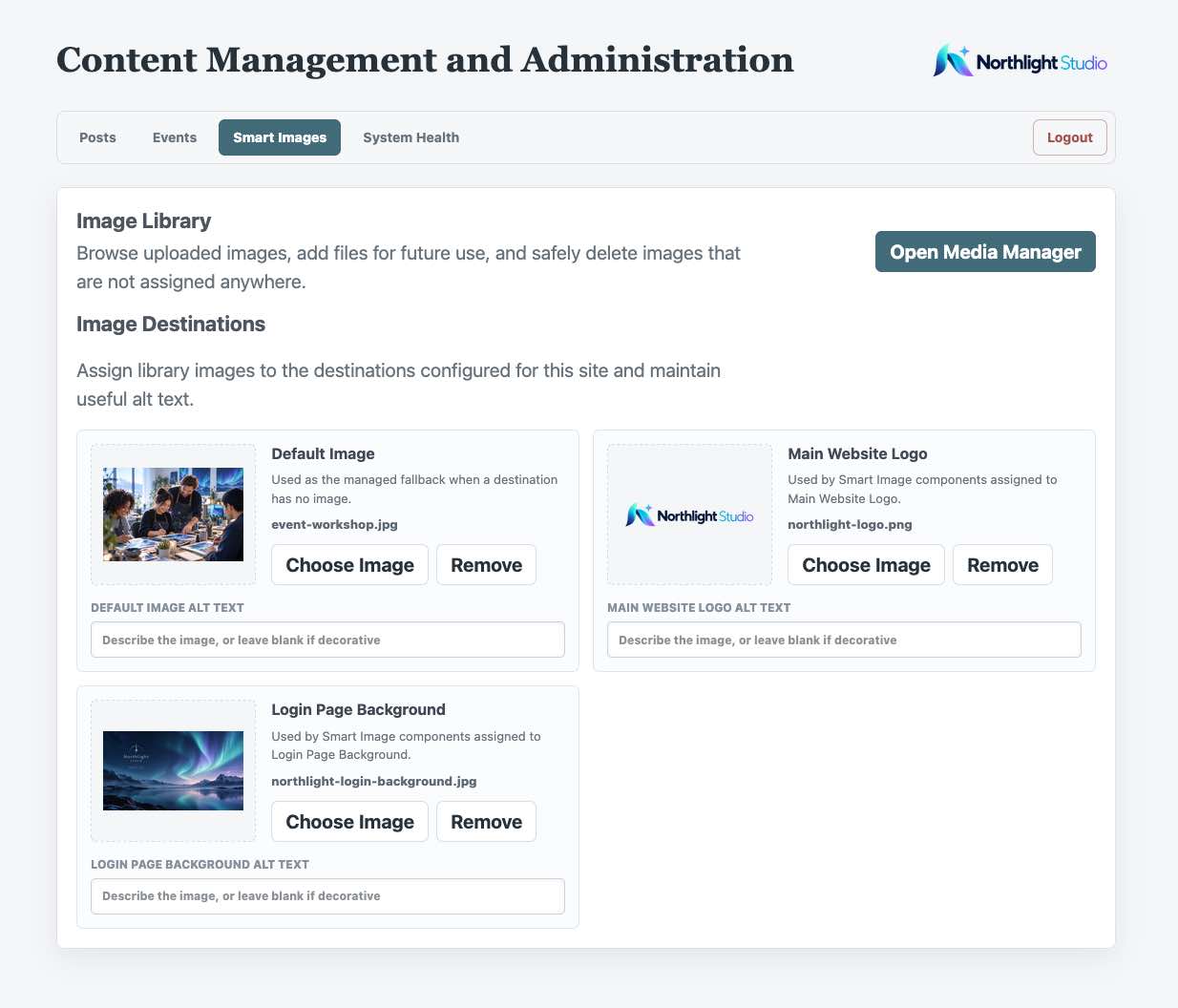
Add Alt Text
Enter useful alt text when the image communicates information. For a decorative public Smart Image, leave both the destination’s alt text and the component’s fallback Alt Text blank. Changes save automatically; wait for All settings saved before leaving Smart Images.
Change or Remove an Assignment
Choose Image again to replace the current file. Select Remove to clear its assignment without deleting the file from Media Manager. Public Smart Image placements can use Default Image and then their Component Image fallback. The Admin header logo disappears when its direct site-logo assignment is unavailable; it does not use those fallbacks.