
Content Studio / Components
Post List Component
Display Posts with the Post List component and configure its presentation.
What This Component Does
The Post List component reads published Content Studio posts and presents them on a public page. Drafts and posts scheduled for a future date are not shown to public readers.
Choose a Layout
Select Card for an image-led grid, Horizontal for rows with image and text side by side, or Compact for a condensed list. Horizontal items place the image first when the layout stacks below 640 pixels.
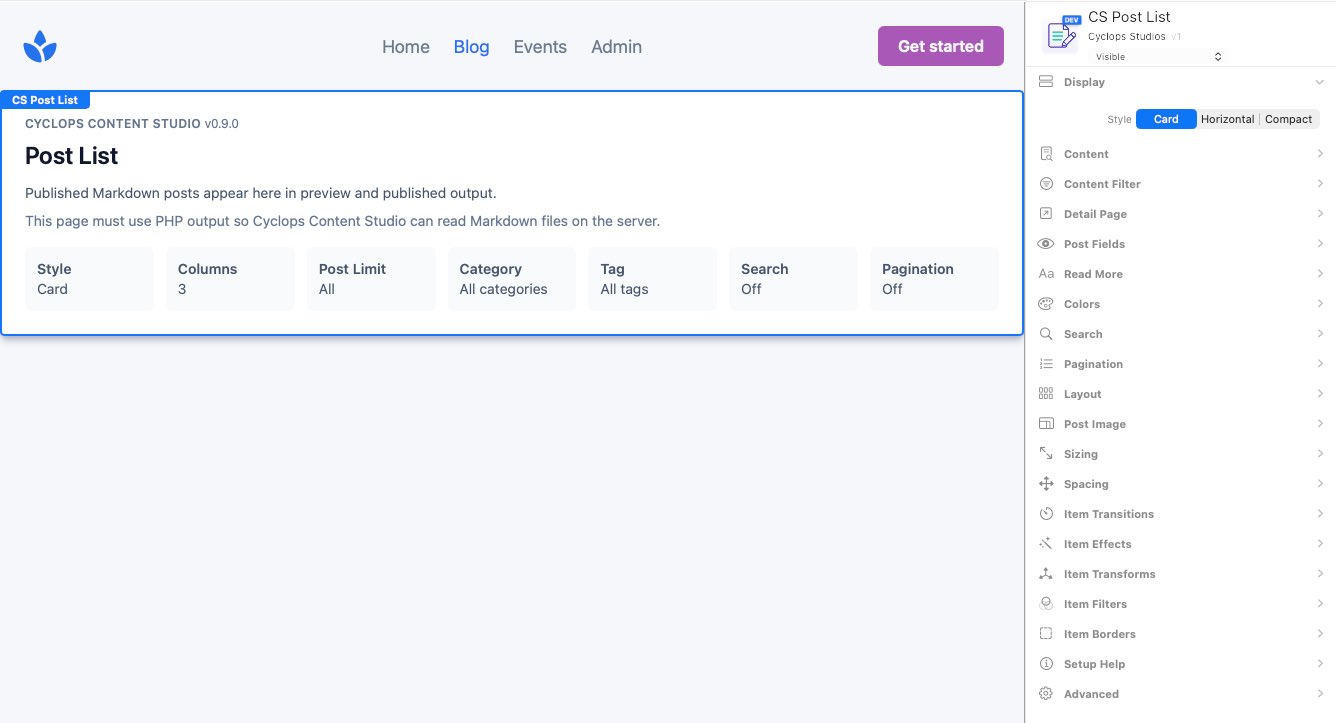
Select Posts and Their Destination
Set Post Limit from 0 to 24; 0 includes all matching published posts. Category and Tag narrow the results. Detail Page can point to another Elements page or URL, while a blank value opens a post on the same page. A Post Detail Page can also be used as a full-page layout. For a full-page Detail Page, set Return Page to the page visitors should return to when no originating Post List page is available, such as when the Detail Page is opened directly, bookmarked, or reached from an external link. When a visitor arrives through a Post List, the originating page continues to be used for normal detail-return navigation.
Choose Fields and Link Text
Show or hide Date, Author, Category, and Tags. Configure the Read More link, its label, the empty-state message, and an excerpt length from 0 to 400 characters.
Search and Pagination
Search is optional and includes editable field, placeholder, button, clear, and no-results labels. Pagination is also optional; set 1–24 posts per page, page numbers, Previous and Next labels, 3–9 visible page links, and left, center, or right alignment.
Images and Layout
Card layouts support 1–5 columns, gap, and card padding. Choose whether Card and Compact layouts show images. For Horizontal, choose Left, Right, or Alternate image placement and a width from 20% to 60%. Image controls include Auto, Wide, Tall, or Custom aspect ratio, plus object fit and focal position.
Colors and Borders
Leave Theme Colors off for the built-in editorial palette, or turn it on to select project Theme Studio colors for the card background, main and muted text, links, Read More control, and border. The current Main Text default uses a light, legible theme text token. Item Borders can be None, Static, or Hover, with style, color, opacity, width, and radius controls.