
Content Studio / Components
Admin Component
Configure the main Admin component and its administration experience.
What This Component Does
The Admin component creates the private browser-based administration area for your site. It brings together Posts, Events, Smart Images, Media Manager, System Health, and login controls according to the features you enable.
Where to Use It
Place one Admin component on a dedicated administration page. Edit mode shows a safe preview; use Browser Preview or publish to PHP hosting to test initialization, sign-in, storage, and logout.
Branding and Client Features
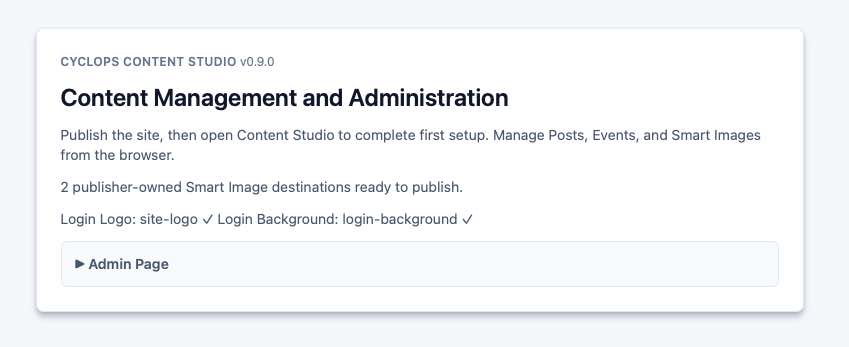
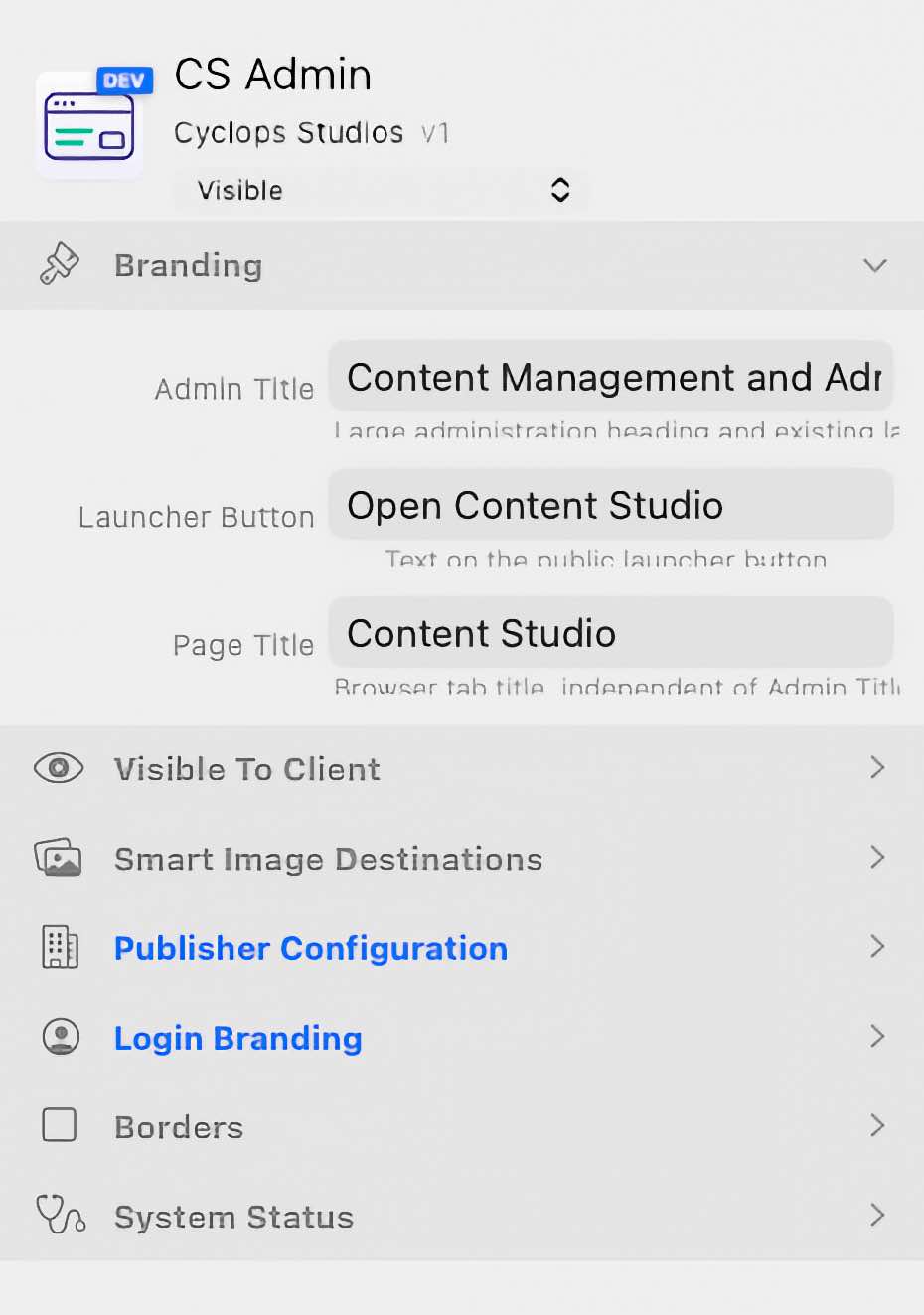
In Branding, Admin Title controls the large heading in the published administration and initialization screens and the existing launcher heading. Its default is Content Management and Administration. The redundant small heading above the main title is removed in administration and initialization; the launcher retains its small label. Launcher Button sets the button text (default: Open Content Studio). Page Title independently sets the browser tab title (default: Content Studio). Under Visible To Client, enable Posts, Events, and Smart Images as needed; at least one must remain enabled.
Smart Image Destinations
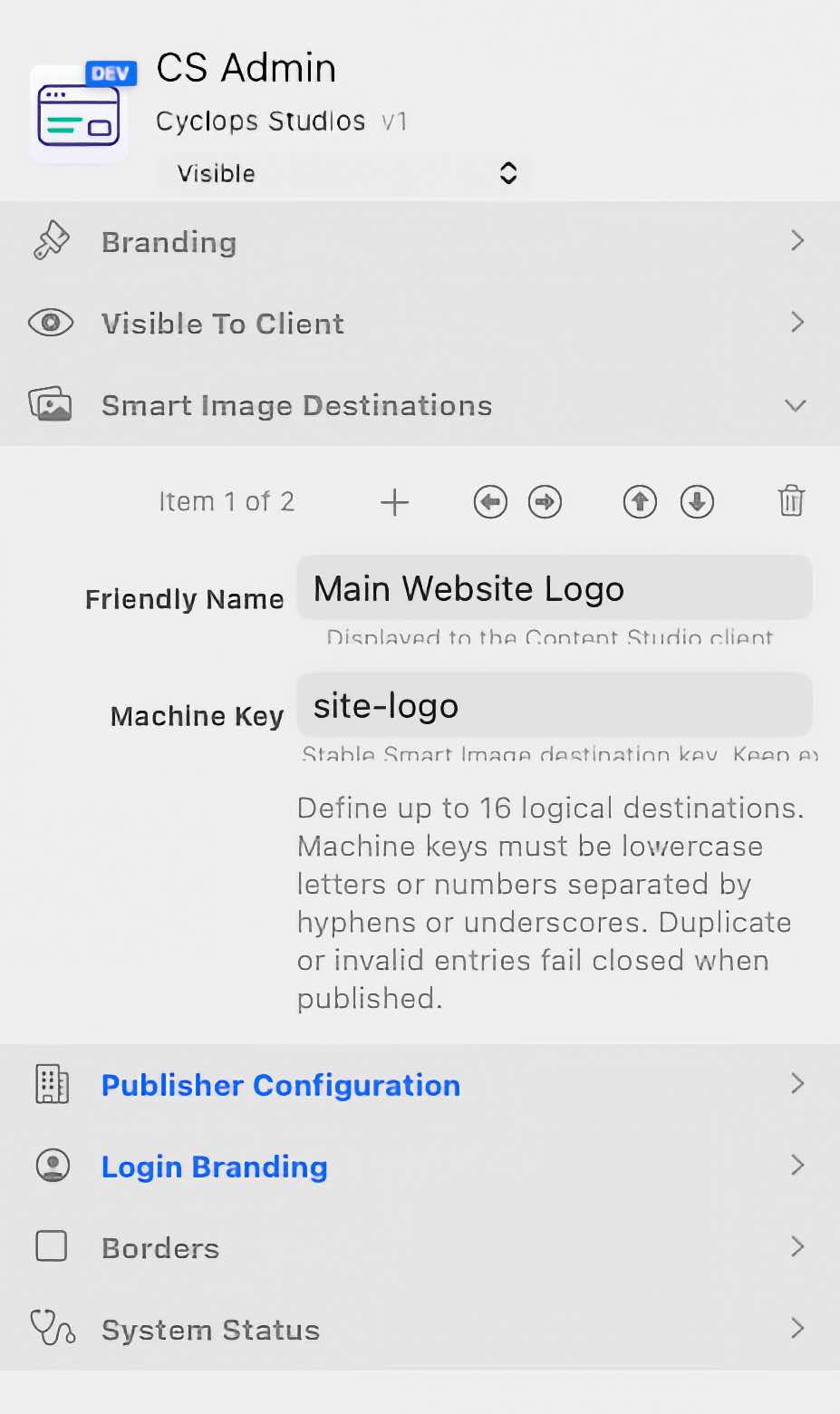
Add up to 16 Smart Image Destinations. Friendly Name is the editable label clients see; Machine Key is the stable connection used by components and saved assignments. Keys must be unique, 1–64 characters, start with a lowercase letter or number, and contain only lowercase letters, numbers, hyphens, and underscores. Invalid or duplicate keys prevent the destination set from being accepted. Keep existing keys when changing labels.
For the client Site Logo, define a destination here with the exact Machine Key site-logo and an editable Friendly Name such as Website Logo. Publish and open the published Admin page, then assign a valid image directly to that destination through Smart Images. The client can replace it there. If the destination or image is missing, the Admin header shows no logo. Default Image and component fallback images are not used. No CS Smart Image component needs to be placed solely for this logo.
Publisher Configuration
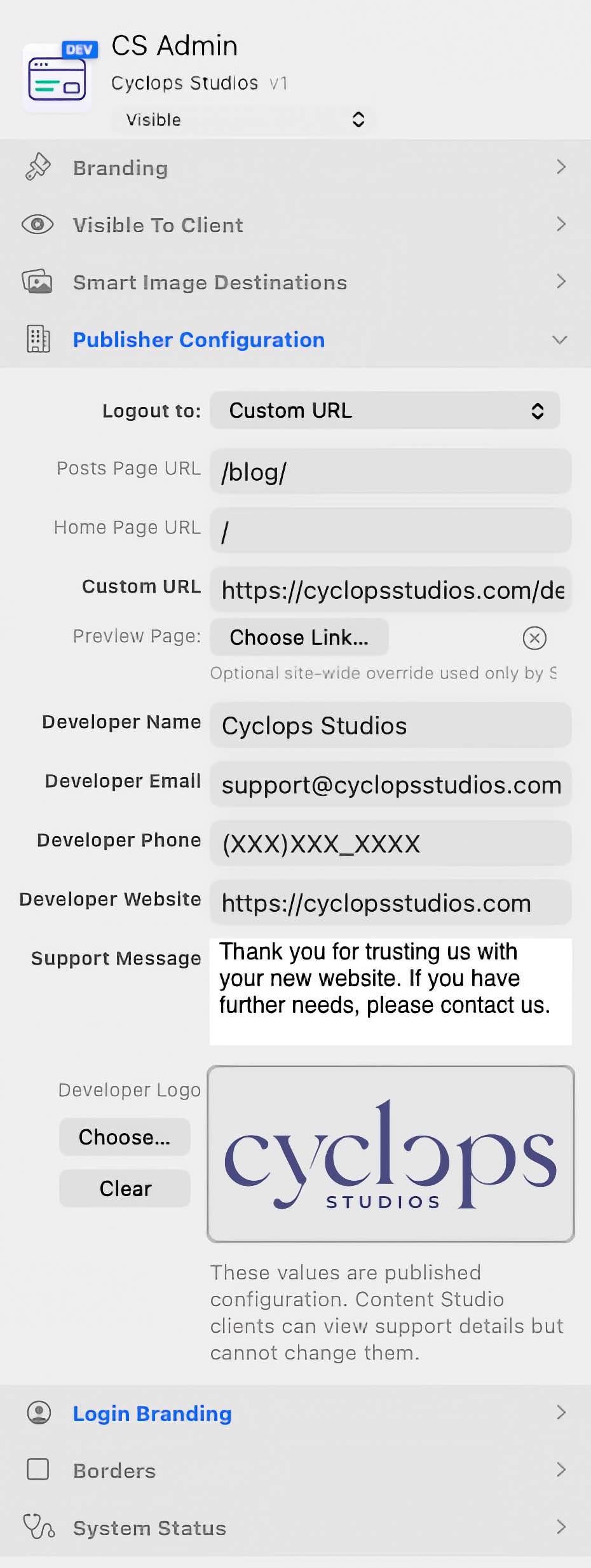
Choose where Logout returns the user: Public Homepage, Login Screen (Legacy), Posts Page, or a Custom URL. Complete the related page or URL fields, choose a Preview Page for eligible posts, and add the developer name, email, phone, website, and support message shown to clients.
Developer Logo is the optional image selector in Publisher Configuration. Choose a normal, local Elements PNG, JPEG, WebP, or GIF image resource and publish. It appears beside the developer support/contact details at the bottom of System Health. It is separate from Smart Images, so clients cannot replace it there. If omitted, the support information remains available without a logo. SVG and remote image resources are not supported for this field.
Login Branding and Panel
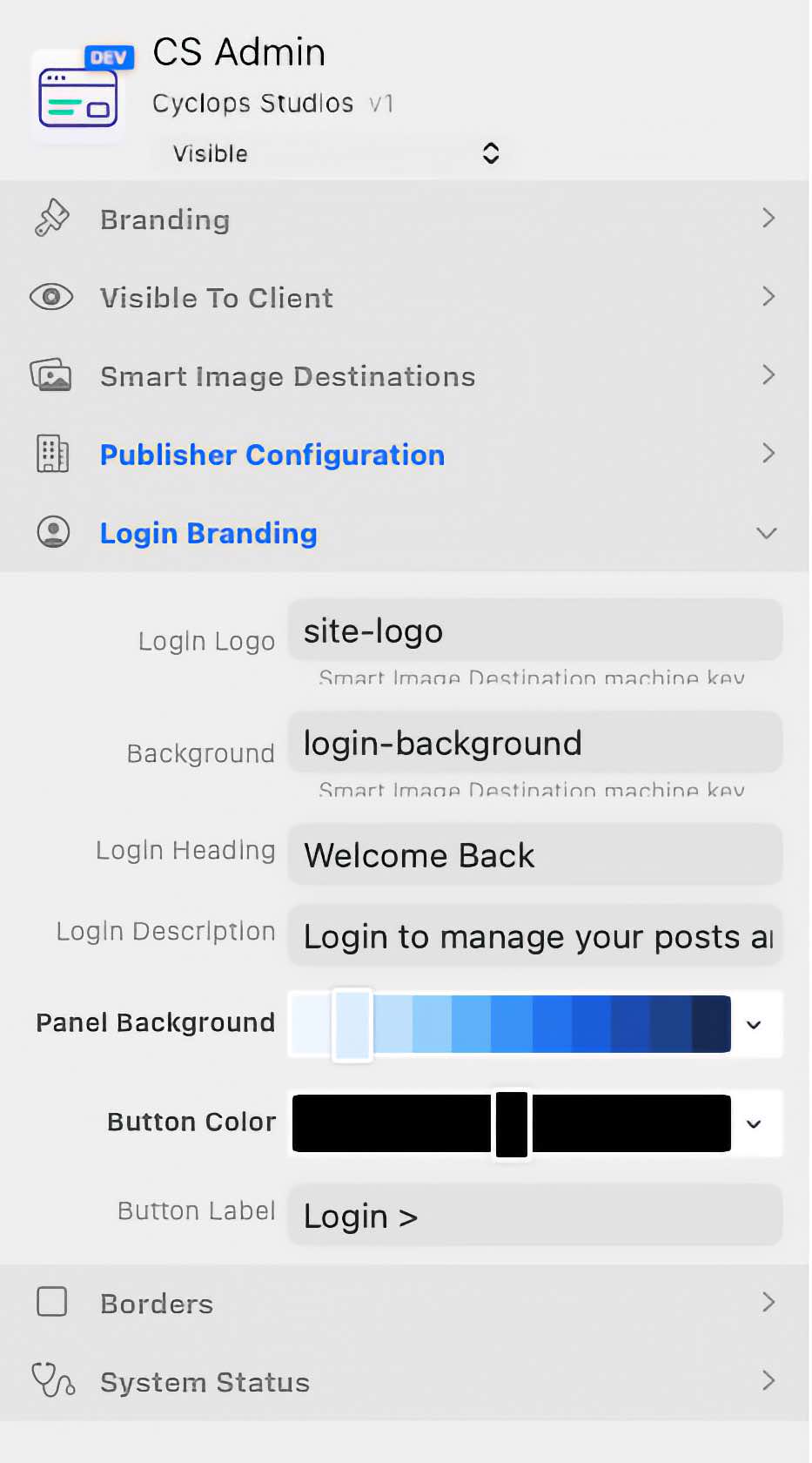
Login Branding maps Login Logo and Background to Smart Image Destination machine keys. Set the login heading, description, button label, panel background, and button color separately. Borders controls the login panel border type, style, color, opacity, width, and radius. These login settings do not control the large authenticated Admin Title or the direct site-logo header rule.
Publishing and Runtime Data
The published Content Studio application is stored separately from its writable runtime data. Normal republishing updates application files while preserving posts, events, settings, credentials, and uploaded media in the protected runtime location.