
Content Studio / Getting Started
Initializing Content Studio
Initialize Content Studio on the published administration page, create the site’s administrator login, and choose how its content library starts.
Before You Begin
Publish the Elements project to the real hosting destination and confirm that the published administration page is reachable. Initialization is completed on the published site, not in Elements design mode.
1. Open the Published Administration Page
Open the published administration page in a current browser. A new installation shows the Content Studio initialization screen.
2. Choose Starting Content
Choose Install Starter Content to add the Northlight Studio sample set, or choose Start Empty for a clean content library. Start Empty is selected by default.
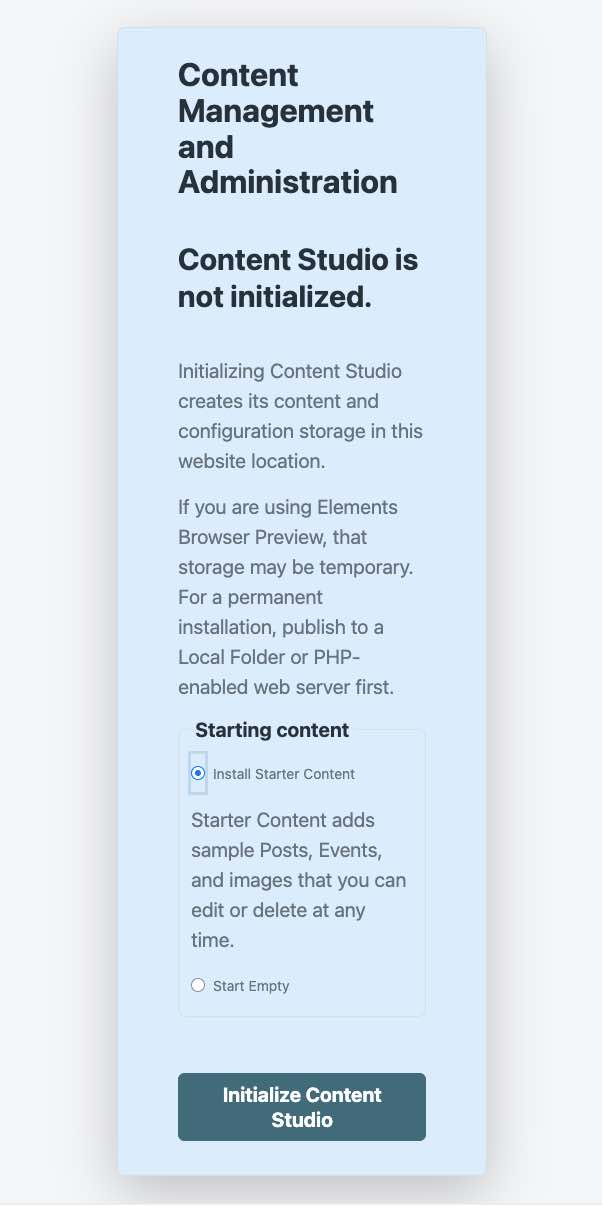
3. Initialize Content Studio
Select Initialize Content Studio. Content Studio prepares the site’s writable storage and records your starting-content choice, then opens the administrator login setup.
4. Create the Administrator Login
Enter a User Name, a password of at least eight characters, and the same password again in Confirm Password. Then select Complete Setup.
What Happens Next?
After setup succeeds, Content Studio installs Starter Content if you selected it, signs you in, and opens the administration area. Start Empty creates no sample Posts, Events, or images.