
Content Studio / Components
Smart Image Component
Connect editable site images to Content Studio with the Smart Image component.
What This Component Does
The Smart Image component displays an image that can be supplied directly in Elements or assigned later through Content Studio. It is intended for reusable site imagery such as logos, banners, sponsor marks, and other owner-managed image slots.
Choose the Image Source
Set Image Source to Component Image when the image should remain controlled in Elements. Choose Smart Image when a client should be able to update the image in Content Studio.
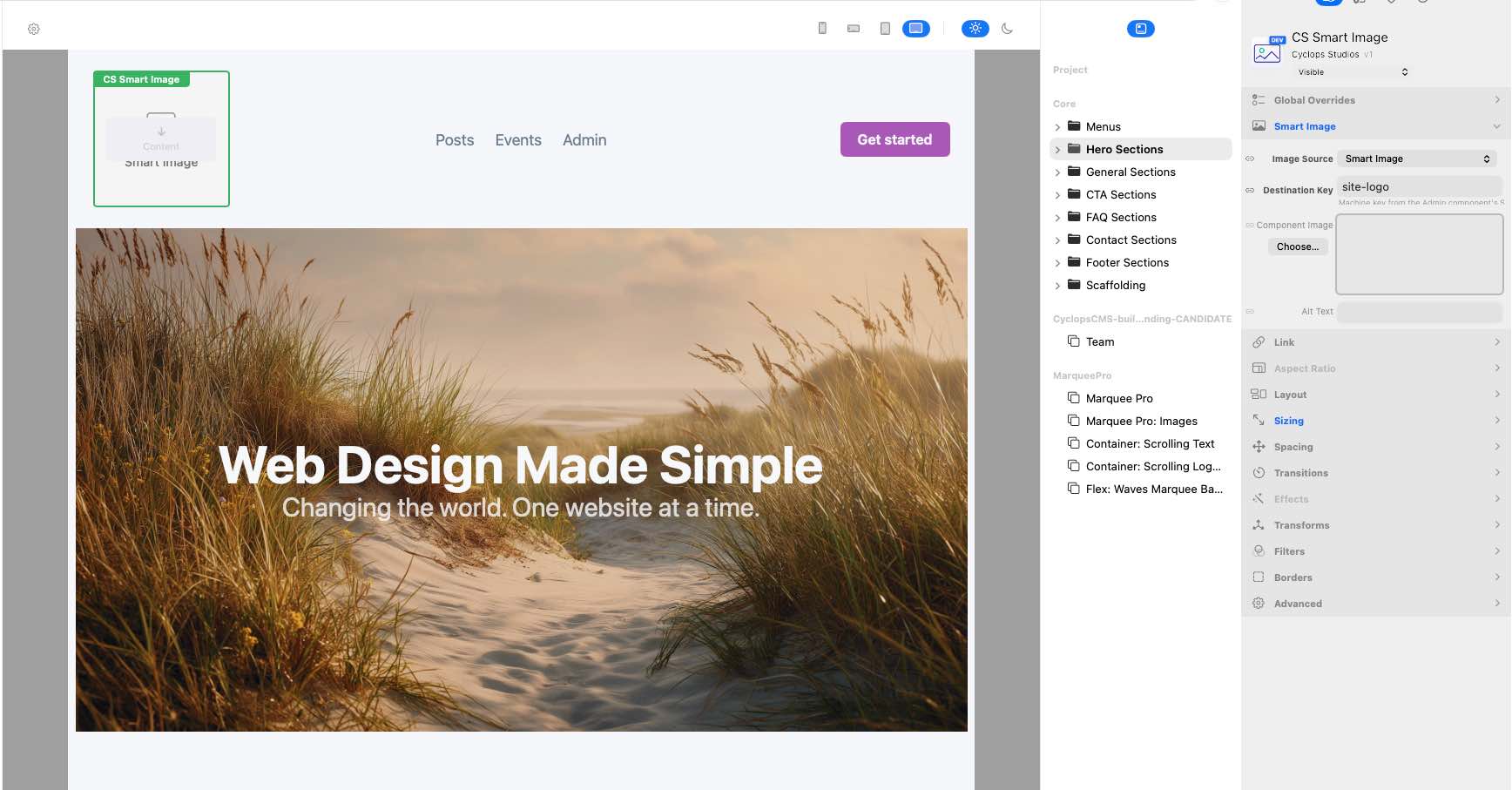
Connect a Managed Destination
Choose Smart Image as Image Source and enter the Machine Key defined under Smart Image Destinations in the Admin inspector. This connects the public placement to its Smart Images assignment. Ordinary assignment changes appear when the public page is refreshed; they do not require republishing the component.
Set a Component Fallback
Choose a Component Image and Alt Text as the Elements-controlled fallback. In Smart Image mode, the selected destination is tried first, then Default Image, then Component Image. Assigned alt text is used when available; otherwise the component’s Alt Text supplies the fallback. Leave both blank for a decorative public image. These public-component fallbacks do not apply to the Admin header logo.
A public Smart Image placement is optional for the Admin header’s client Site Logo. The header reads the exact site-logo destination directly and shows nothing when that assignment is unavailable. Configure that destination in Admin; do not add a presentation component solely to enable the header logo.
Control Cropping and Position
Aspect Ratio can be Auto, Wide, Tall, or Custom. Wide 16:9 with Cover crops the image to fill its box; Auto or Contain preserves the full image. Set the focal position when cropping is enabled. These controls shape the display without changing the stored media file.
Add a Link and Finalize Layout
Use Link To to make the image open an Elements page, resource, or URL. Native Layout, Sizing, Spacing, Effects, Transforms, Filters, and Borders remain available for placement and presentation; keep those choices consistent with the surrounding page.